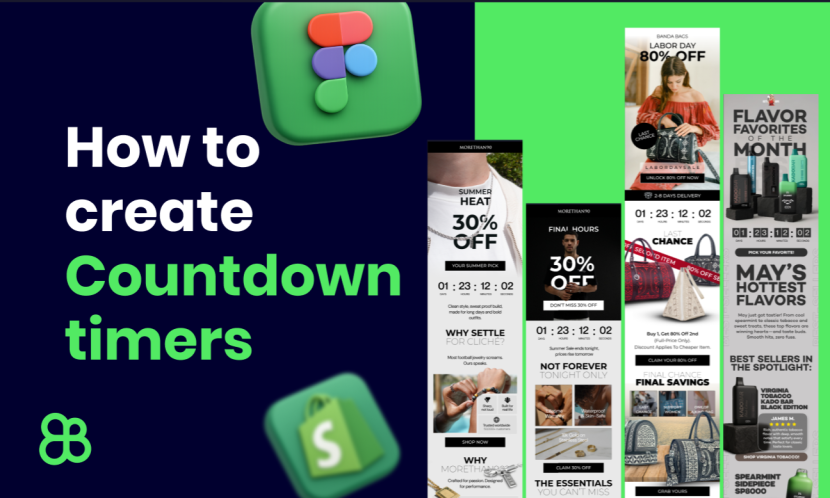
In today’s competitive marketing landscape, it’s incredibly challenging to get people to take action, whether it’s through email marketing, social media, or other channels. Simply placing a call-to-action button and hoping people will click is no longer enough. To push people to take action, you need to create a sense of urgency.
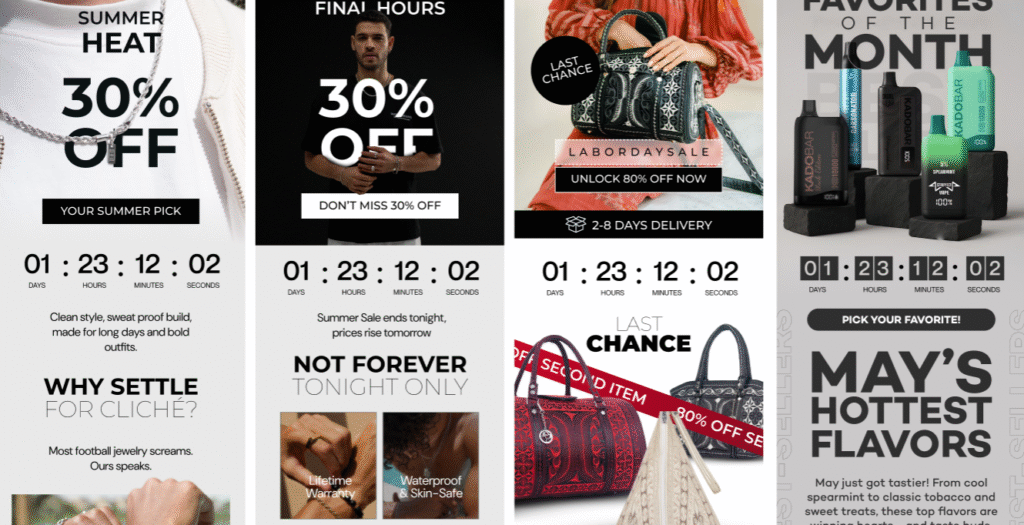
Adding countdown timers to your email campaigns is a powerful way to spark urgency, especially when offering time-sensitive discounts. I’ve generated five-figure revenue from several email campaigns just by effectively using urgency. However, you want to be careful not to overdo it. If you use urgency too often, you’ll overwhelm your recipients, leading to unsubscribes or spam complaints.
In this post, I’ll show you how to implement countdown timers in your email designs, creating that critical urgency and driving sales for your most important campaigns, like holiday promotions or limited-time offers.
Why Urgency Matters in Email Campaigns
Creating a sense of urgency helps push your recipients to make quicker purchasing decisions. When paired with limited-time discounts, countdown timers can convert hesitant customers into buyers. However, you should only use urgency during special campaigns, like Black Friday or seasonal sales, to avoid overwhelming your audience.
How to Add Countdown Timers to Your Email Designs
Here’s a step-by-step guide to adding countdown timers to your email campaigns:
- Design Your Email First
Before you add a countdown timer, ensure your email design is finalized. Slice your email design in Figma, ensuring that you leave space where you want the timer to appear. Do not add the countdown timer in Figma directly because we will generate it separately. - Generate the Countdown Timer
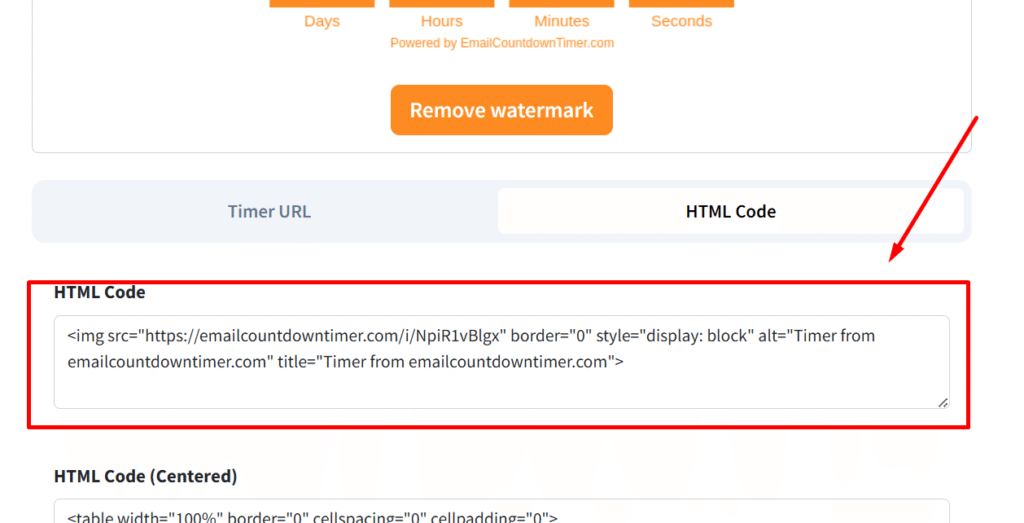
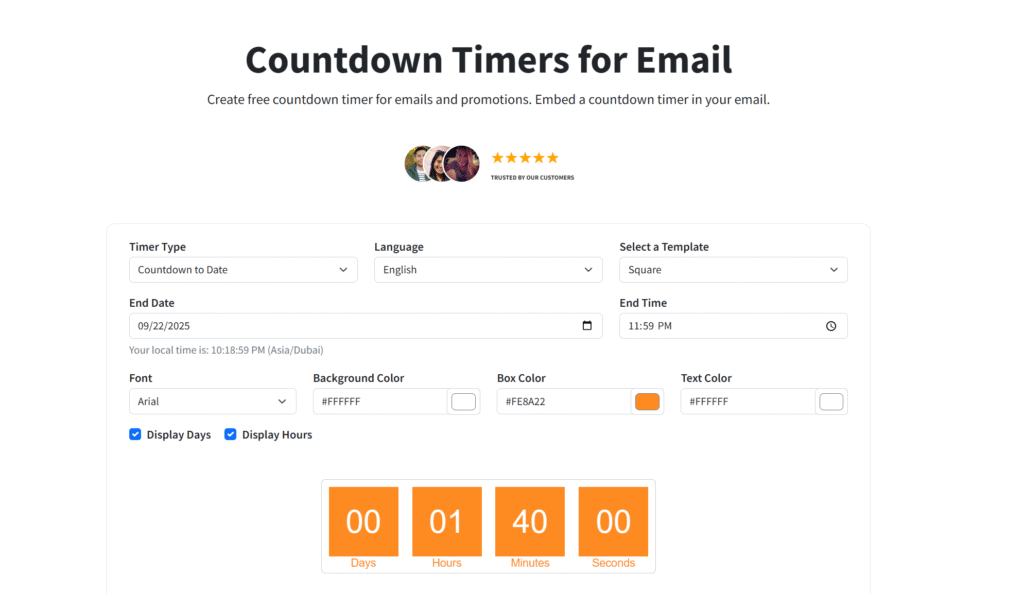
Use a service like MailTimer.io or EmailCountdownTimer.com to create your countdown timer. Both platforms offer customizable templates and a variety of timer options.- MailTimer.io allows you to choose from various timer styles and customize the colors and fonts to match your email design.
- EmailCountdownTimer.com is another solid option for creating visually appealing and functional timers.
- Customize the Timer
After selecting your timer template, you’ll need to customize it to match your email’s look and feel. Update the colors, background, and text to match your brand’s design. For instance, if you’re offering a holiday sale, make sure the timer reflects that festive theme. - Embed the Timer in Your Email
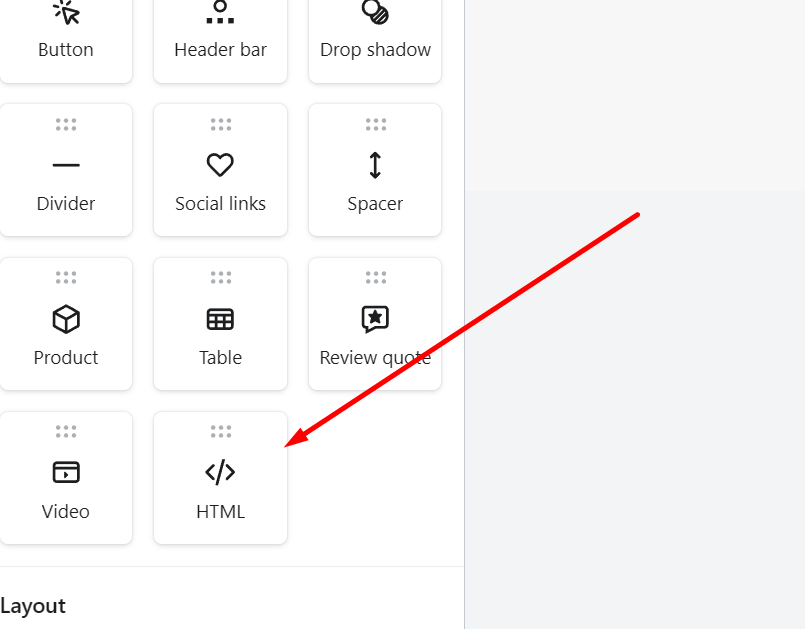
Once the timer is created, you’ll get an HTML code snippet that you can embed in your email editor. Add an HTML block to your email design and paste the countdown timer code there. - Align the Timer Properly
The timer might not be center-aligned by default, but you can fix that by tweaking the HTML. If you’re unsure how to do that, simply paste the code into ChatGPT and ask for help making it center-aligned, or adjust the width to 100% to make it responsive. - Final Touches
Once the timer is embedded and aligned, finish your email design by adding your images and slices. Test your email before sending it to ensure everything looks perfect and the countdown timer is functional.
Where to Get Your Countdown Timers
I recommend using the following platforms to create your countdown timers:
These platforms offer easy-to-use templates and customization options to make your emails stand out.
Why This Works
Countdown timers create urgency by showing recipients that time is running out. This drives them to act quickly, leading to higher conversion rates. It’s a simple yet effective strategy to boost sales, especially during important sales events like Black Friday, Cyber Monday, and holiday promotions.
Get Access to Editable Email Designs
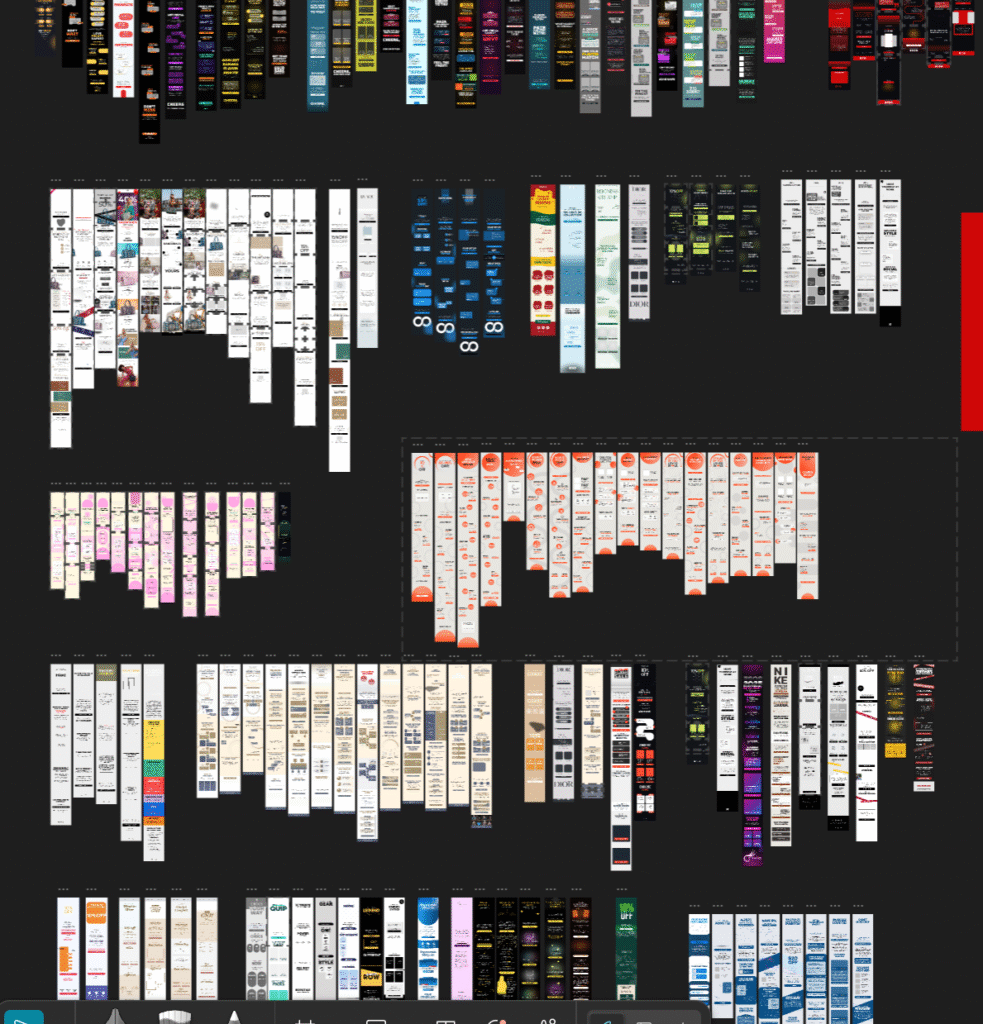
If you want to save time and effort on your email designs, I offer editable Figma email templates that you can customize. These templates are ready to use and will allow you to quickly implement countdown timers and other key elements in your campaigns.
To access these templates and more than 100 other editable email designs, click the link below, enter your email, and get instant access:
Get Access to 100+ Editable Email Templates
Final Thoughts
Using countdown timers in your email campaigns is an easy way to create urgency and drive more sales. But remember to use this tactic sparingly, only for special events like holiday sales or flash promotions. Overuse can lead to email fatigue and unsubscribes.
Get Your Free Figma Email Templates
Speed up your design process with our free Figma email template pack. Use proven layouts for Welcome, Abandoned Cart, and Campaign emails. Grab it here: CLICK HERE.
Want Expert Help? Get a Free Email Audit
If you’d like a pro to review your Shopify email setup and create a 90-day revenue plan, request your Free Email Marketing Audit here: CLICK HERE.